
The Site Is Experiencing Technical Difficulties-WordPress QuickFix
There is nothing worse in a WordPress site then an error message saying “The site is experiencing technical difficulties”. It appears all of a sudden in the middle of your work. A lot of users have gone through this difficult situation. This error makes everyone confused and if you are not a techy person, your…
Parvez Akther
There is nothing worse in a WordPress site then an error message saying “The site is experiencing technical difficulties”. It appears all of a sudden in the middle of your work. A lot of users have gone through this difficult situation.
This error makes everyone confused and if you are not a techy person, your site might end up at this point. There are a lot of solutions available but all of them are jargon solutions. By following those you solutions you may even completely destroy your site.
Therefore today I am here with the solution to this problem.
Find The Reason to Error “The Site Is Experiencing Technical Difficulties”
In the core of WordPress themes and plugins, PHP is used. The first thing that you will want to do is place WordPress in debugging mode and have a look at the log file that is generated.
In the core of WordPress themes and plugins, PHP is used. The first thing that you will want to do is place WordPress in debugging mode and have a look at the log file that is generated.
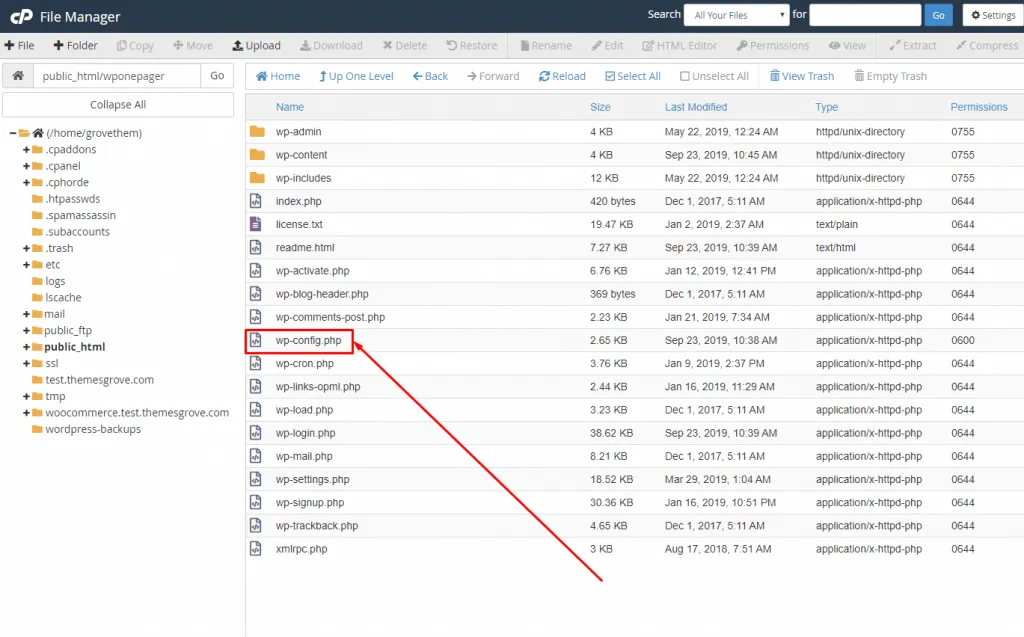
- Locate your “wp-config.php” file with the file manager from your cPanel hosting account or equivalent.
The wp-config.php is located in your root folder of the hosting. It contains the configuration settings for your WordPress site.
Place WordPress in Debug Mode
- Add the following lines to your config file.
define('WP_DEBUG', true);
define('WP_DEBUG_LOG', true);
define( 'WP_DEBUG_DISPLAY', false );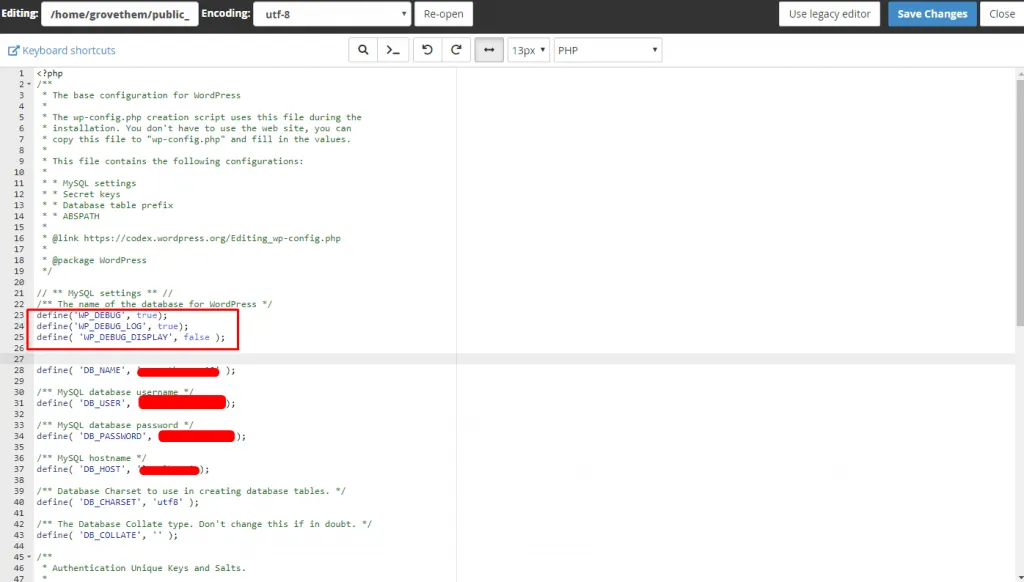
- Save the file and hit refresh.
- From the file manager, navigate to “/wp-content/ folder and open the file debug.log.
- Look for the line “PHP Fatal Error”
Here you will see the error that is causing the error: “The Site Is Experiencing Technical Difficulties”.
E.g: PHP Fatal error: Cannot redeclare bp_members_screen_display_profile() (previously declared in /…/buddypress/bp-members/screens/profile.php:22) in /…/buddypress/bp-members/screens/profile.php on line 32Clean The Debug Code
The log will give you exact line number and file name, where the error occurred. In this way, you can identify whether the error is in the WordPress core, theme or in a plugin.
- Clean up the debug code lines from the wp-config.php file.
The Alternative Method to Fix Problem “The Site Is Experiencing Technical Difficulties”
If you think debugging is very much confusing or hard to understand, there is another way to solve this error. It will take a bit more time but will work fine.
Check & Resolve If There Are Any Theme Conflicts
If there is an error in your theme, this procedure will solve it.
- By using file manager navigate to “/wp-content/themes” and rename the directory with a postfix of “OLD”. e.g If your site is running with the Switch theme, rename the folder “Switch” to “SwitchOLD”.
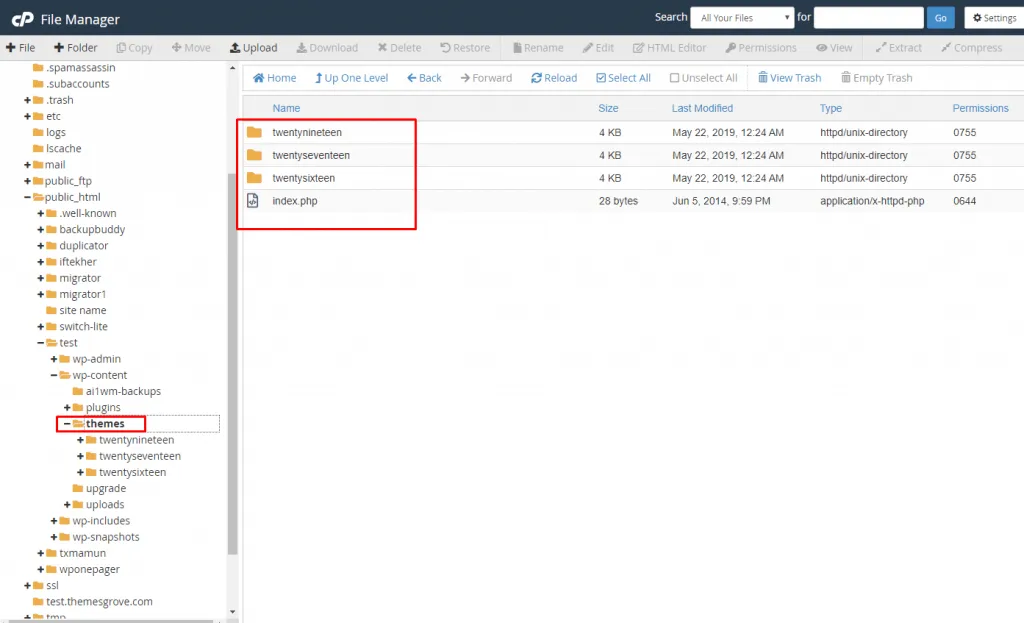
Note: You must have an alternative theme like Edumodo or Twenty Nineteen, in your themes folder for this procedure to work.
- Now refresh the front page of the site which comes with the error “WordPress the site is experiencing technical difficulties”.
Don’t worry, you will not lose any of your settings or theme files. You will be able to restore your folder at the end of this process.
- Check if the error “WordPress the site is experiencing technical difficulties” is still there. If the error is still there, then the error is not in your theme. You can rename the theme folder back to its original name.
- If the error is gone, then the theme has an error in it.
- Now access the admin area and update your theme. Or reach out to the theme developer for an update.
Check & Resolve If There Are Any Plugin Conflicts
If there is no problem with the theme, there is a good chance that the problem is in plugins.
-
From your file manager, navigate to “/wp-content/plugins”.
-
Now rename the “plugins” folder to “pluginsOLD”.
-
Login to the admin dashboard and navigate to plugins view.
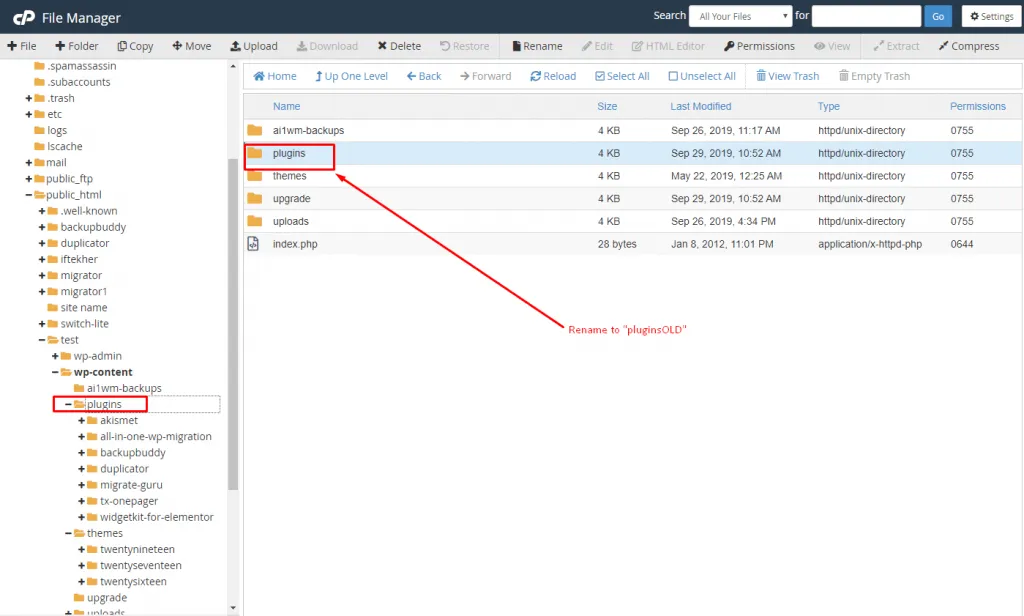
You will notice that all plugins are deactivated because the Plugins folder is renamed.
- Go back to the file manager and rename “pluginsOLD” to “plugins.
- Refresh the plugins view page.
- Now activate each plugin one at a time and refresh the page, until the error message “WordPress the site is experiencing technical difficulties” appears again.
- Gotcha! The last plugin you activate and found the error is faulty.
Now you know, the faulty plugin. Remove it or ask the developer of the plugin for help.
Upgrading Your PHP Version
Nowadays WordPress recommends PHP 7.2 and all of the theme and plugin authors are started to move to the new PHP.
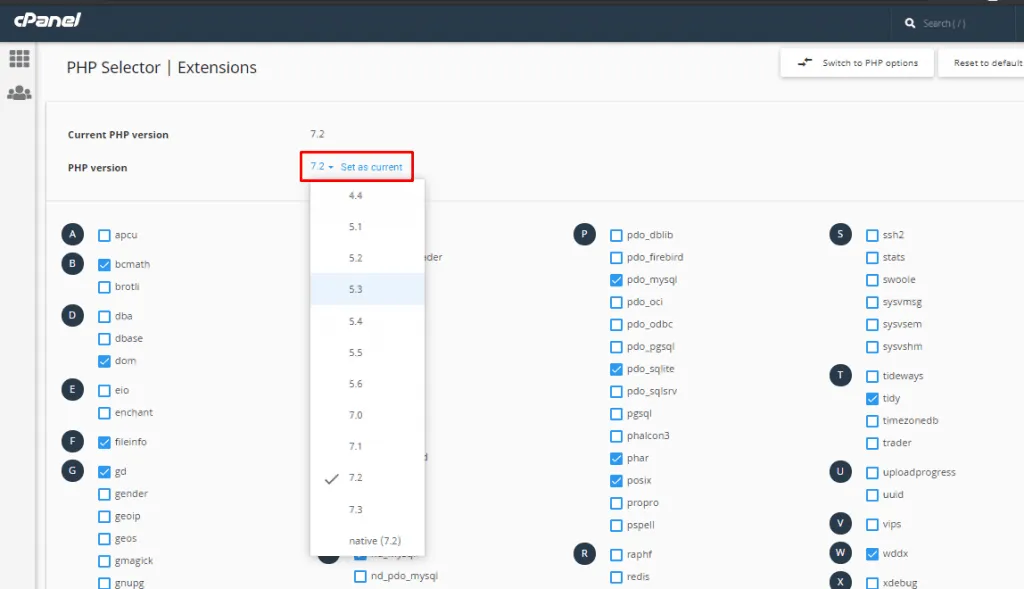
You might find the PHP fatal error in the log file because of the old PHP 5.6 function doesn’t exist anymore. This is known as depreciation, where old function is removed in favor of better and newer functionality.
Therefore it is recommended to upgrade to the latest version of PHP.
Conclusion
If you have followed the instructions I have provided you here, I bet you will be back up and running. For handling any unexpected situation always take a backup of your site regularly.
If you have any queries in your mind feel free to ask me through the comment box.
Written by
Parvez
October 13, 2019
Founder of ThemesGrove and a tech veteran with deep experience across WordPress, products, and web platforms.
Related reading

QUICK FIX
How to Redirect WWW to Non WWW and Vice Versa in WordPress
Many people often ask the question regarding redirect www to non www and vice versa of their website URL. If you go through WordPress forums, you can notice many people asking questions related to removing www or adding www in their websites’ URL. Moreover, many of you are scared about whether it will affect your…
QUICK FIX
How to Fix Regular PHP Issues for WordPress-WordPress QuickFix
You already know that we have taken a plan to make a series post on WordPress QuickFix so that our beloved readers that means you won’t face any silly problem while you are developing your project with WordPress. As a part of that plan, today, I’ve prepared a tutorial guide with relevant screenshots on several…

QUICK FIX
How to Remove Add to Cart Button WooCommerce-WooCommerce QuickFix
WooCommerce is known as one of the most popular eCommerce solutions for WordPress. But most of the time, site owners don’t know how to remove add to cart button WooCommerce. For this reason, they cannot provide the product to their client which is out of stock or they don’t want to show. There are millions…