
How to Add a Beautiful JavaScript Text Animation in Your Website (Without Coding)
Without attraction, no one likes to check go further on a website. You can add this attractiveness by applying different types of animations to sections and elements. Animation does not only changes any sections but also your texts too. If you want to animate your text, you can take the help of Javascript. However, if…
Parvez Akther
Without attraction, no one likes to check go further on a website. You can add this attractiveness by applying different types of animations to sections and elements. Animation does not only changes any sections but also your texts too.
If you want to animate your text, you can take the help of Javascript. However, if you don’t know to write code in JS, what will you do? You will definitely not quite, therefore today I am going to show you “how you can add beautiful javascript text animation in your site.
After following all the steps you will be able to add different javascript text animations on your website. So why wait, let’s start creating some JS text animations.
Table of Contents
Required Tools
Before you start creating your javascript text animation, you need a bunch of tools, including a website made with WordPress and these 2 plugins:
Elementor Page Builder
WidgetKit for Elementor
Download and install these plugins then follow the below steps. Widgetkit plugin comes with an animated text element. The developers of the plugin done the coding part and all the hardworks for you. Now all you have to do is insert and use it in the way you want.
Steps to Create JavaScript Text Animation
In your WordPress website,
- Create a new page and open it with the Elementor Page builder.
- From the left sidebar of elements panel scroll below to ‘WIDGETKIT ELEMENTS’.
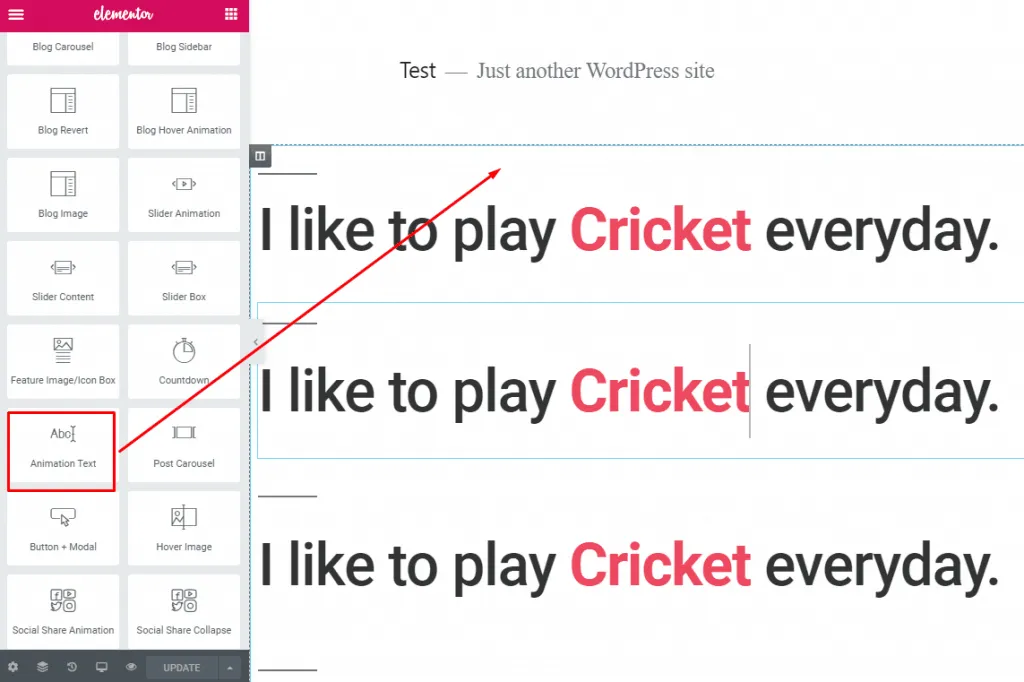
- Click and drag ‘Animation Text element and place where you want.
- Now click on the edit option of the ‘Animation Text’ and select the ‘Content’ tab.
This element of widgetkit is separated by three parts of a text, prefix text, animated text, and suffix text.
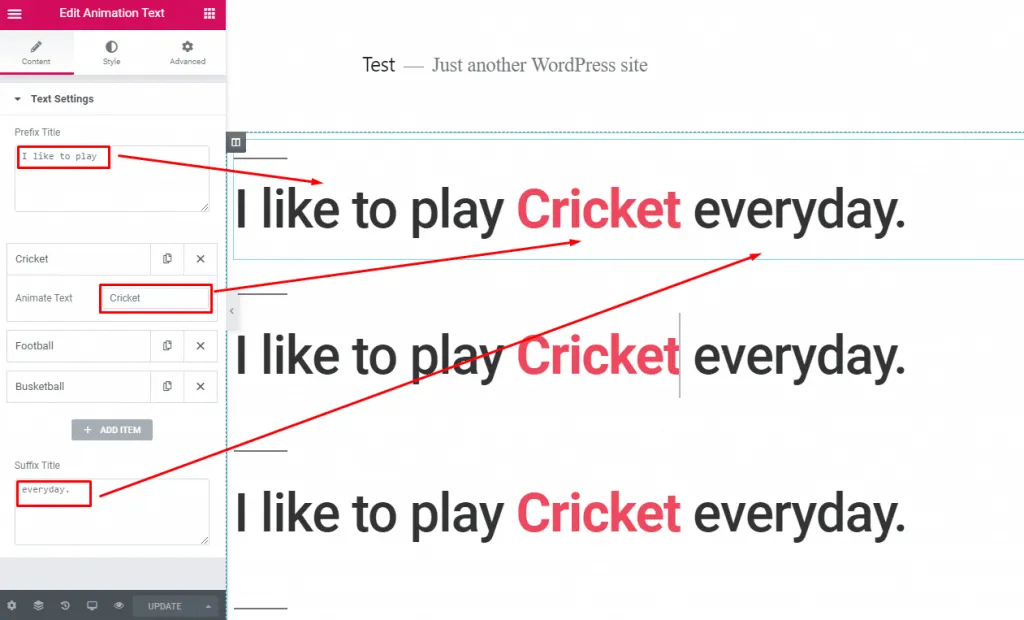
- Place your preferred prefix text and then animated text.
- If you want to add multiple text animation in one place then click on the ‘Add Item’ button and add more items as your required.
- If you have any suffix text to show, then put that in here.
You have successfully created your javascript text animation with the help of widgetkit. Now you can style your text in the way you want. To style text
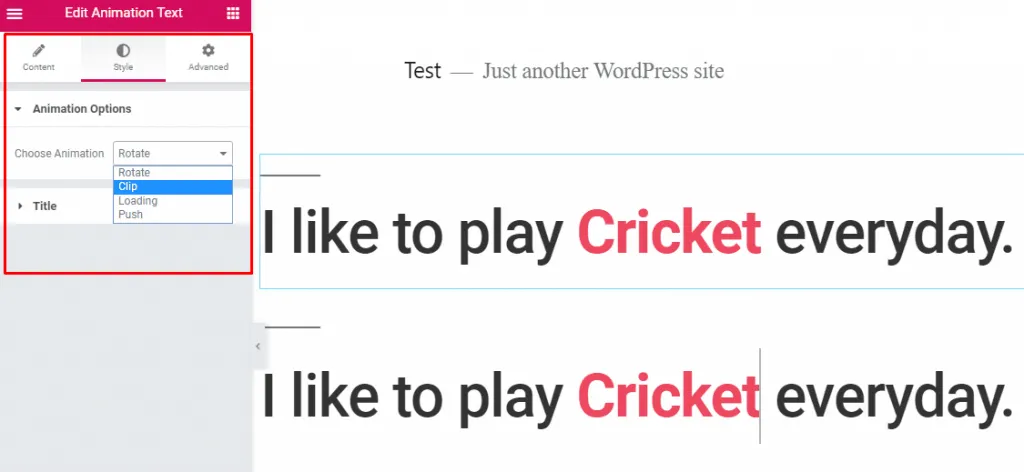
- Go to edit the option of the element and switch to the ‘Style’ tab.
- From here chose your animation style and alter title styles.
If you still didn’t understood the process, check the video below.
Want More?
The plugin that used here will not only allow you to create animated text but also many other incredible sections. You will be able to give a new look to your site with the help of widgetkit. There are more than 26 elements available and each comes with a lot of styling.
You will be able to create your site differently with the help of Widgetkit.
Last Words
Now you can easily create and add as much as javascript text animations on your website without writing a single line of code. In addition, you will be able to also create the whole site easily and will be able to create a lucrative look.
Feel free if you have any questions in the comment box below.
Written by
Parvez
September 11, 2019
Founder of ThemesGrove and a tech veteran with deep experience across WordPress, products, and web platforms.
Related reading

TIPS & TRICKS
How to Turn Public Data into a Revenue-Generating Directory Website for Under $30
Discover how directory websites can become profitable online businesses. Learn two proven directory models you can build with WordPress using publicly available data and affordable tools.

TIPS & TRICKS
Introducing Advanced Tab for WidgetKit to Present Your Content in an Organized Way
Do you ever wonder why your website losing hundreds or thousands of visitors? Research Shows website design has a 75% influence on a website’s credibility, and here having unorganized content can hurt your website design so badly. The sole purpose of your website should be attracting customers, encouraging them to interact with the content, and…
TIPS & TRICKS
Webflow vs WordPress: Which is better for your website?
Are you trying to decide between Webflow and WordPress for your new website? Maybe you’re feeling overwhelmed by the endless options and don’t know where to start. Don’t worry; we’ve all been there. In this article, we’ll compare Webflow vs WordPress head to head, covering their pros and cons, features, and pricing, and help you…