
How To Set Up Flat Rate Shipping In Woocommerce – Ultimate Guide

How to set up flat rate shipping in WooCommerce? Don’t know that? Well, take a good look at this post, because you are going to learn how to set up flat rate shipping in WooCommerce by yourself. Then you will be able to easily set flat rate shipping, WooCommerce shipping per item, multiple shipping methods,…
Parvez Akther
How to set up flat rate shipping in WooCommerce? Don’t know that? Well, take a good look at this post, because you are going to learn how to set up flat rate shipping in WooCommerce by yourself. Then you will be able to easily set flat rate shipping, WooCommerce shipping per item, multiple shipping methods, and much more all by yourself.
So why wait, let’s dig in.
What is Flat Rate Shipping
If you have previous experience of sending a package via post office that you know what is flat rate shipping. Flat rate shipping imposes a uniform shipping price on your parcel as long as it doesn’t exceed a certain size or weight. For example, the shipping cost for a parcel less than 1kg and 1 cubic meter is $3 per parcel.
This same idea applies to WooCommerce flat rate shipping.
How Does WooCommerce Flat Rate Shipping Work?
WooCommerce flat rate shipping depends on some criteria. These are zone, distance, weight, size and time. According to this criteria’s flat rate shipping is generally processed. Example- a parcel of 2 cubic meters and less than 1kg will cost $3 for shipping in China in 5 days. The same parcel will cost $5 for shipping in 3 days. If the client wants more early the cost may increase more.
If you own a WooCommerce site or running a shipping service then WooCommerce flat rate shipping will help you a lot.
How to Set Up Flat Rate Shipping in WooCommerce?
In your WooCommerce enabled WordPress website,
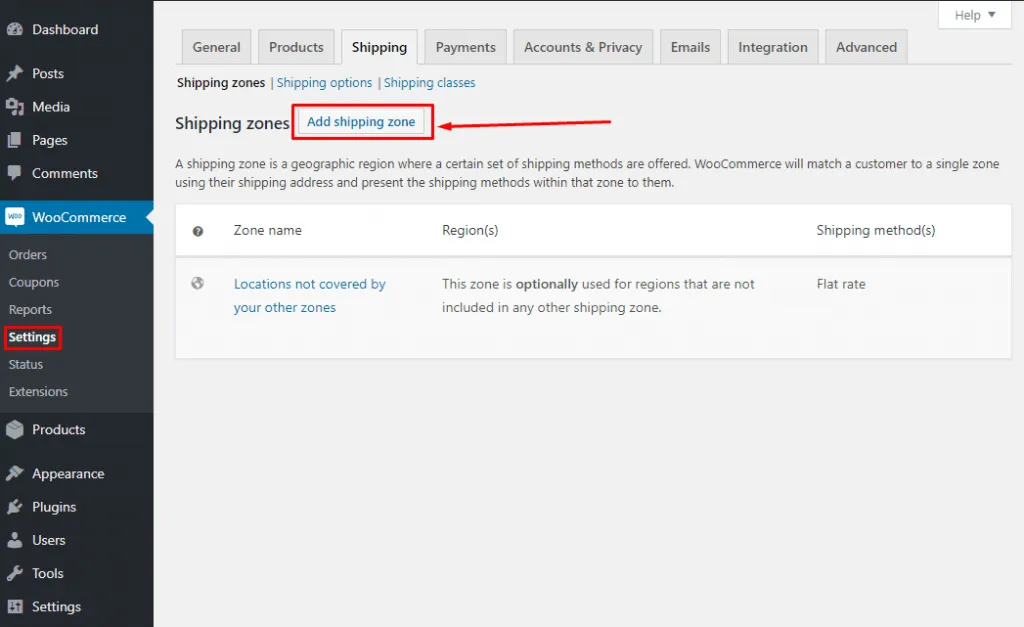
- Go to WooCommerce > Settings.
By default, WooCommerce has three types of shipping methods.
- Flat Rate Shipping
- Free Shipping
- Local Pickup
Now create a shipping zone first than you can add one or more shipping methods.
- Go to Shipping tab and from shipping zones, click on ‘Add shipping zone.’ Give your zone name, choose the zone regions.
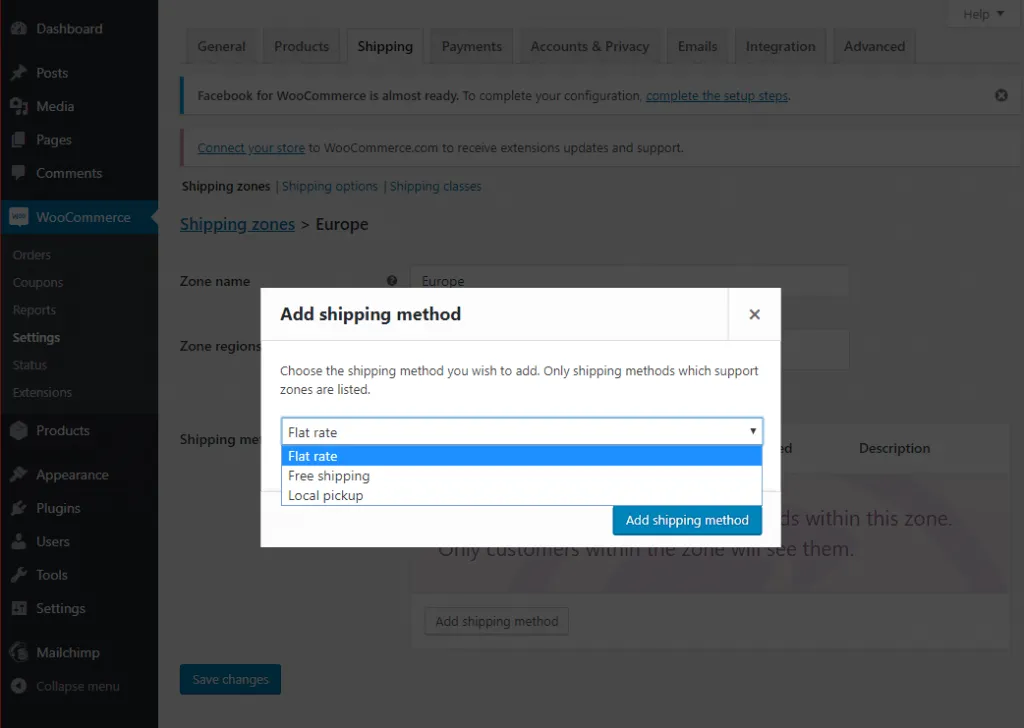
- Click on add shipping method and select ‘Flat Rate’.
- Once the Flat Rate method is created, click on edit and give the suitable title to it.
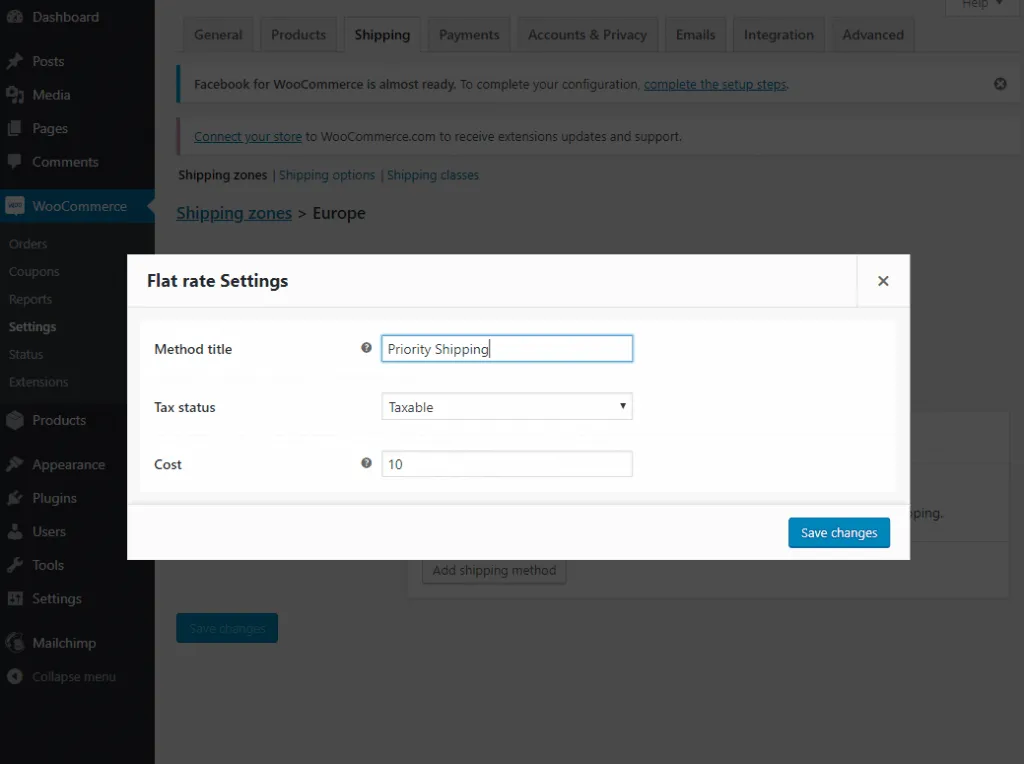
- In the cost field, put your price for shipping a parcel.
Now you are done with setting the WooCommerce flat rate. You can see there’s a toggle button below the ‘Enable’ column.
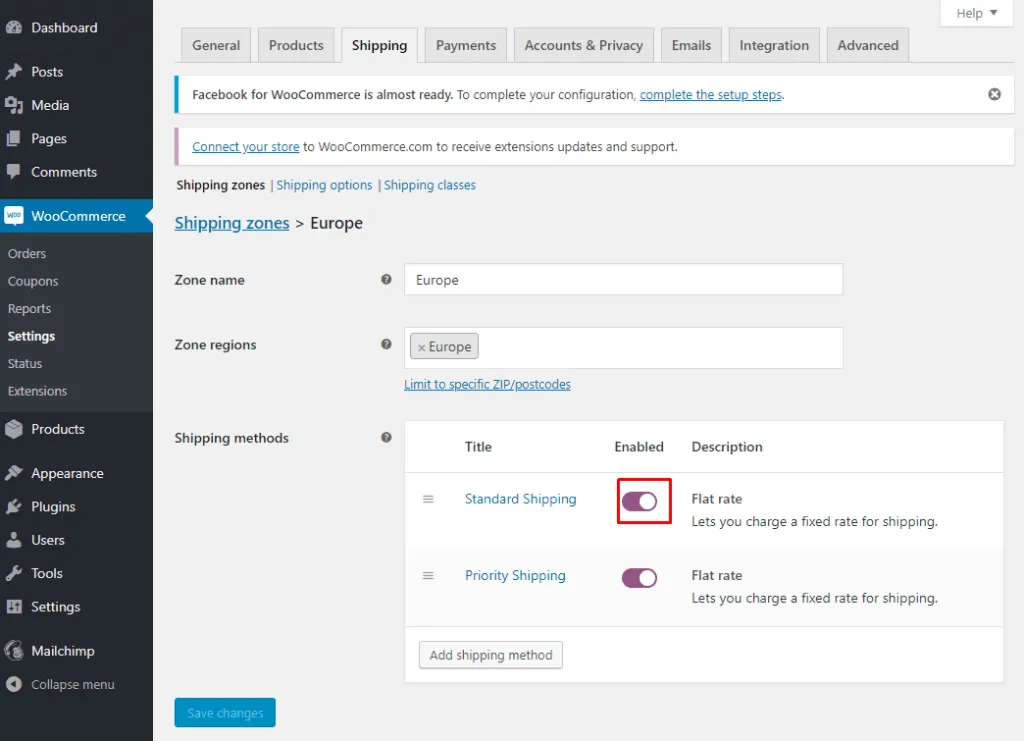
Click this button either to enable or disable the shipping method according to your need. If you like you can checkout the whole process from this video.
how to set up flat rate shipping in woocommerce
Can I Have Multiple WooCommerce Flat Rate Shipping Setup?
There is absolutely no number limit on having multiple WooCommerce flat rate shipping. On one zone you can have multiple flat rate shipping. You might wonder, why you need multiple flat rate shipping for one specific zone?
For example, you can provide priority shipping at a higher rate and standard shipping at a lower rate. Your client can choose their preferred shipping from the cart page. If they need the product to urgently delivered, they will choose priority shipping else standard.
By setting up multiple flat rate shipping, your client will see multiple shipping options.
Do It Easily With Plugin
If you don’t want to take the trouble by yourself, leave it to WooCommerce flat rate shipping plugins. You will get WooCommerce flat rate shipping plugins from the WordPress plugins directory. Among so many WooCommerce flat rate shipping plugins, these are popular.
These plugins are very easy to use. If you use any third party plugins, you might see an error saying ‘wooCommerce shipping options not showing’. But I can assure you that you will not see such errors with these WooCommerce flat rate shipping plugins.
Conclusion
Hope this guide will help you to set up flat rate shipping successfully on your site. You will not need to see any other guides to learn about how to set up flat rate shipping in WooComerce. If you have any questions, feel free to ask in the comment section below.
Written by
Parvez
June 27, 2019
Founder of ThemesGrove and a tech veteran with deep experience across WordPress, products, and web platforms.
Related reading

TIPS & TRICKS
How to Turn Public Data into a Revenue-Generating Directory Website for Under $30
Discover how directory websites can become profitable online businesses. Learn two proven directory models you can build with WordPress using publicly available data and affordable tools.

TIPS & TRICKS
Introducing Advanced Tab for WidgetKit to Present Your Content in an Organized Way
Do you ever wonder why your website losing hundreds or thousands of visitors? Research Shows website design has a 75% influence on a website’s credibility, and here having unorganized content can hurt your website design so badly. The sole purpose of your website should be attracting customers, encouraging them to interact with the content, and…

TIPS & TRICKS
Webflow vs WordPress: Which is better for your website?
Are you trying to decide between Webflow and WordPress for your new website? Maybe you’re feeling overwhelmed by the endless options and don’t know where to start. Don’t worry; we’ve all been there. In this article, we’ll compare Webflow vs WordPress head to head, covering their pros and cons, features, and pricing, and help you…