
How to Create Learndash Course Grid by a Few Clicks

In the WordPress marketplace, there are dozens of LMS plugins, but you have chosen LearnDash (excellent choice). While using LearnDash plugin or LearnDash WordPress themes, you have surely realized that the default course pages look terrible. Thankfully LearnDash course grid add-on is developed. With the help of this add-on, you can organize and present your…
Parvez Akther
In the WordPress marketplace, there are dozens of LMS plugins, but you have chosen LearnDash (excellent choice). While using LearnDash plugin or LearnDash WordPress themes, you have surely realized that the default course pages look terrible. Thankfully LearnDash course grid add-on is developed.
With the help of this add-on, you can organize and present your courses in an excellent way. But you might not know how to use it or how to create learndash course grid with the help of add-on. Therefore, in this post, I have decided to show you “how to create learndash course grid.”
I will show you three different ways to create learndash course grid. But before showing it, I would like to say a little bit about learndash.
Create LearnDash Course Grid by a Few Clicks
- What is LearnDash?
- Create LearnDash Course Grid Using “Learndash Course Grid” Addon
- Create LearnDash Course Grid Using WidgetKit
- Last Words
What is LearnDash?
LearnDash is the most powerful and popular LMS plugin for WordPress cms. You can create, organize, sell all your courses and course materials easily with the help of the LMS WordPress theme, or Education WordPress theme. LearnDash is a complete solution for starting your online course site as you can easily get your hands on LearnDash tutorials, LearnDash themes, and all other stuff.
You can show your courses in an impressive way with learndash addon. Let’s see how to make it.
Create LearnDash Course Grid Using “Learndash Course Grid” Addon
Before you do this, make sure LearnDash is installed on your WordPress site. Now install the LearnDash Course Grid addon.
LearnDash Course Grid Addon Installation
You can install this addon in two ways.
First Option:
- From your WordPress Admin Area, navigate to LearnDash LMS > Add-ons.
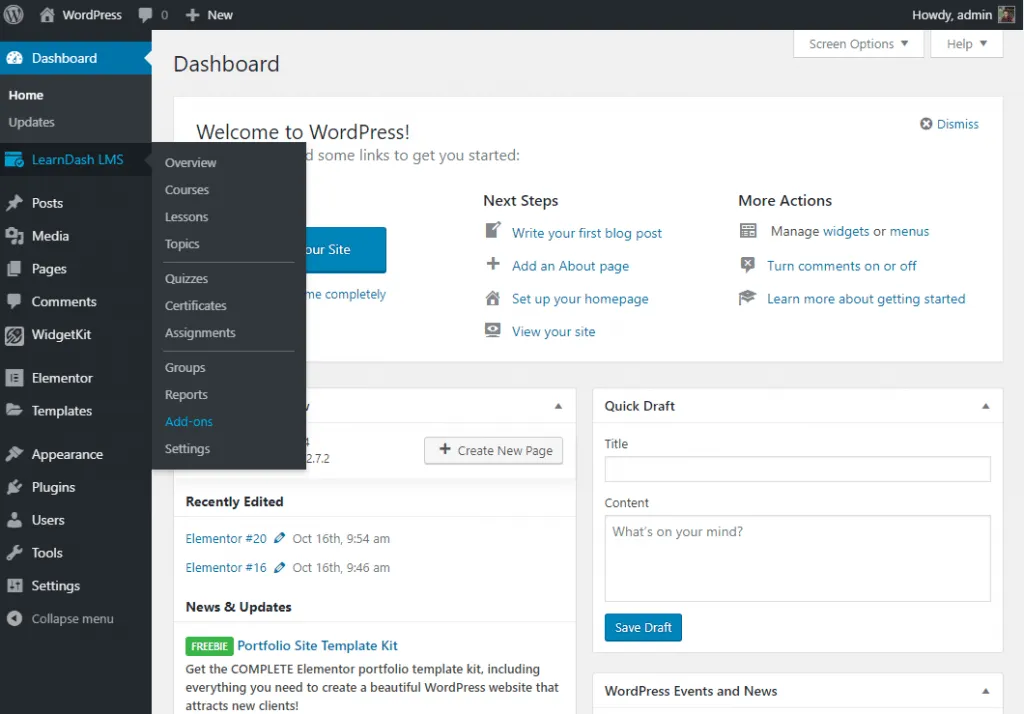
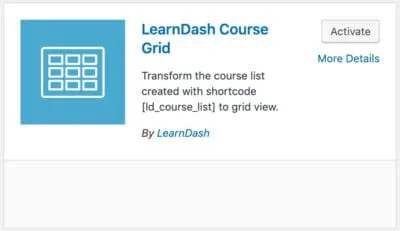
- Find the LearnDash Course Grid add-on.
- Install and Activate the addon.
Second Option:
- From this link download the file(you must be logged in to download)
- Go to Plugins > Add New > Upload Plugin.
- Select the file and click on Install Now.
- Then activate the addon.
You have successfully installed Learndash course Grid addon. Now its time to use it and create a LearnDash course grid to your preferred page. To create LearnDash course grid, you can place the shortcode on the preferred page or by inserting block.
LearnDash Course Grid Creation
Using Block : If you are using the latest version of WordPress editor (WordPress 5.0), then you have got the blocks (aka Gutenberg).
With the help of blocks, you can insert course grid in an easier way. To add a course grid block:
- Click the + (plus) icon.
- On the search, block write “learndash course list” and insert the block.
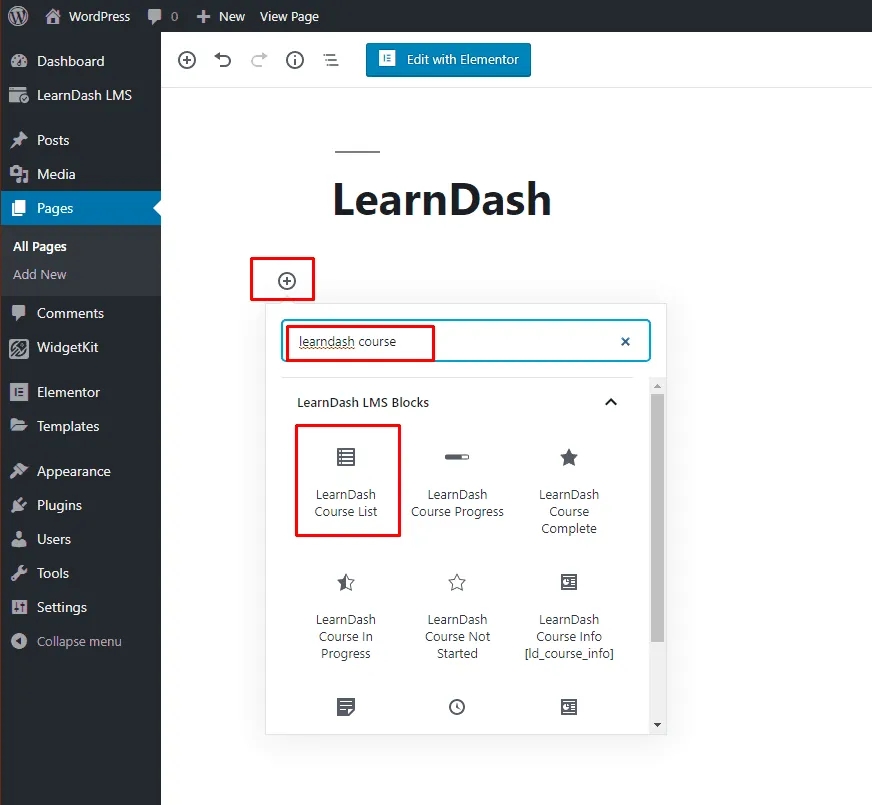
- All the adjustment settings are on the right side. Adjust your block options (e.g. order by, sorting, course per page, progress bar, columns, etc.) as you need from the block options panel.

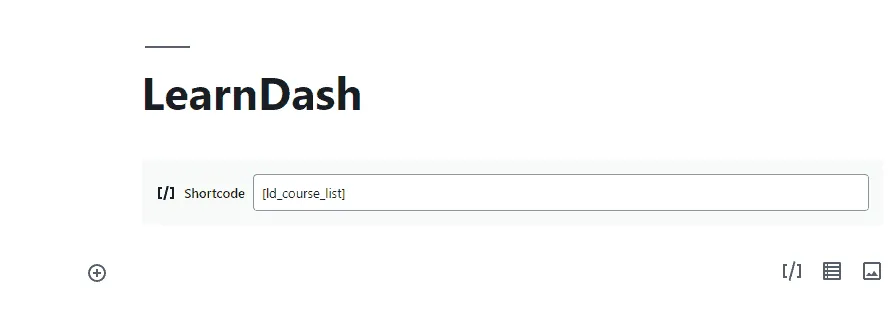
Using ShortCode : The shortcode to insert LearnDash course grid is
[ld_course_list]When you use shortcode, your course grid will show 3 columns and the following items by default:
- Course title
- Feature image (If available)
- Short description (If available)
- Ribbon
- Button
There are a lot of parameters available with shortcodes. This parameters help you to customize your course grid in the way you want.
Suppose you want to have 4 columns on your page. To do it just add col=”4″ after the shortcode.
E.g. [ld_course_list col="4"]Checkout more parameters from the table below and customize your learndash course list in the way you want.
| Feature | Description | Parameter | Possible Values |
| Grid Columns | Number of columns your grid will have on large screens. | col=”4″ | 1, 2, 3, 4, 5, 6 |
| Progress Bar | A visual indicator of a student’s current progress in each course | progress_bar=”true” | true |
| Number of Courses | How many courses will be displayed in your grid | num=”10″ | any integer |
| Course Sorting | How to sort the courses in your grid. | orderby=”title” | titleIDdatemodifiedmenu_orderrand |
| Order of Sorting | The sort order for the “orderby” parameter. | order=”ASC” | ASCDESC |
| Hide Content | Hide the title, description & button. | show_content=”false” | false |
| Hide Thumbnail | Hide the thumbnail image. | show_thumbnail=”false” | false |
| My Courses | Shows only the courses in which the current user is enrolled. | mycourses=”true” | true |
| Not-Enrolled Courses | Shows only the courses in which the current user is NOT enrolled. | mycourses=”not-enrolled” | not-enrolled |
| If using LearnDash categories & tags | |||
| Course Category ID | Shows only courses in the specified LearnDash category. Use the category ID. | course_cat=”10″ | any course category ID |
| Course Category Name/Slug | Shows only courses in the specified LearnDash category. Use the category slug. | course_category_name=”math” | any course category slug |
| Course Tag ID | Shows only courses tagged with the specified LearnDash tag. Use the tag ID. | course_tag_id=”10″ | any course tag ID |
| Course Tag Name/Slug | Shows only courses tagged with the specified LearnDash tag. Use the tag slug. | course_tag=”math” | any course tag slug |
| Course Category Selector | Adds a dropdown menu to filter the course grid by course category. | course_categoryselector=”true” | true |
| If using WordPress categories & tags… | |||
| WordPress Category ID | Shows only courses in the specified WordPress category. Use the category ID. | cat=”10″ | any WordPress category ID |
| WordPress Category Name/Slug | Shows only courses in the specified WordPress category. Use the category slug. | category_name=”math” | any WordPress category slug |
| WordPress Tag ID | Shows only courses tagged with the specified WordPress tag. Use the tag ID. | tag_id=”10″ | any WordPress tag ID |
| WordPress Tag Name/Slug | Shows only courses tagged with the specified WordPress tag. Use the tag slug. | tag=”math” | any WordPress tag slug |
| WordPress Category Selector | Adds a dropdown menu to filter the course grid by WordPress category. | categoryselector=”true” | true |
Create LearnDash Course Grid Using WidgetKit
Widgetkit is all in one free addons kit for Elementor. If you are using Elementor page builder, you can easily create LearnDash course grid by draggin a single element.
Make sure Elementor, WidgetKit, and LearnDash are installed in your WordPress site.
Then take a new page and click on “Edit with Elementor”.
- On the search box type “learndash course list” or scroll down to WIDGETKIT elements.
- Insert the element by dragging it.
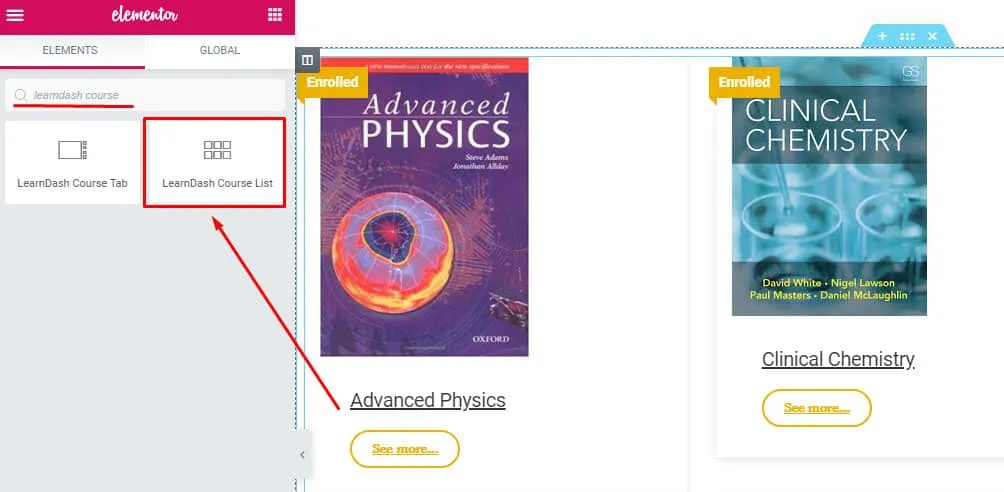
- LearnDash course grid is successfully inserted.
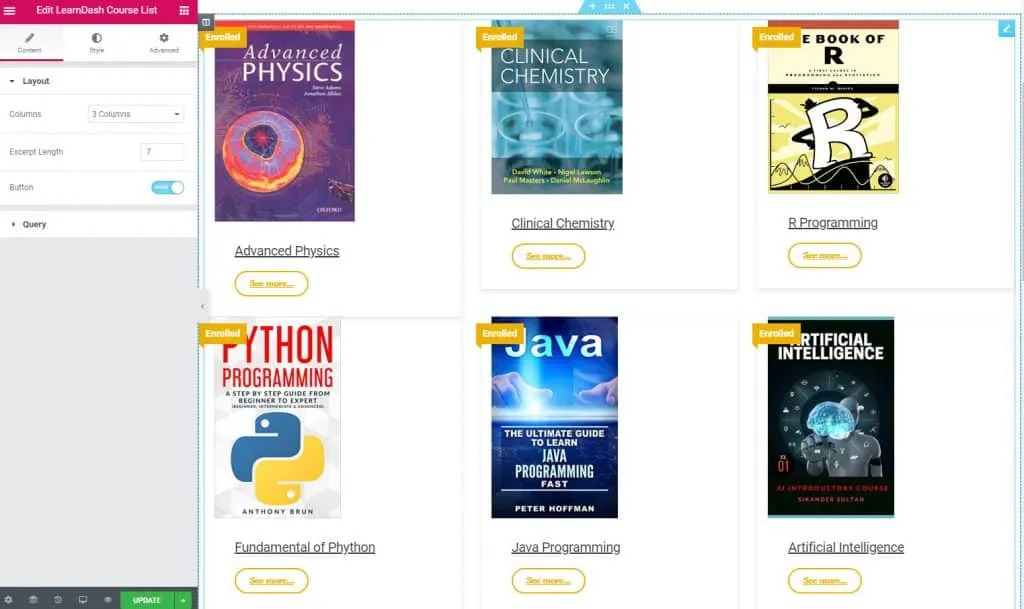
Now customize in the way you like. It’s very much simple with WidgetKit. You don’t have to use any learndash themes or see learndash tutorials to use WidgetKit.
Last Words
Alright, you have successfully learned to create the impressive learndash course grid. Now insert it on your site and create the wow factor. If you face any problem while inserting the learndash course grid, feel free to contact me. While using Learndash, if you feel the need for an awesome theme checkout Education WordPress theme bundle.
I am sure you will love it.
Written by
Parvez
October 17, 2019
Founder of ThemesGrove and a tech veteran with deep experience across WordPress, products, and web platforms.
Related reading

TIPS & TRICKS
How to Turn Public Data into a Revenue-Generating Directory Website for Under $30
Discover how directory websites can become profitable online businesses. Learn two proven directory models you can build with WordPress using publicly available data and affordable tools.

TIPS & TRICKS
Introducing Advanced Tab for WidgetKit to Present Your Content in an Organized Way
Do you ever wonder why your website losing hundreds or thousands of visitors? Research Shows website design has a 75% influence on a website’s credibility, and here having unorganized content can hurt your website design so badly. The sole purpose of your website should be attracting customers, encouraging them to interact with the content, and…

TIPS & TRICKS
Webflow vs WordPress: Which is better for your website?
Are you trying to decide between Webflow and WordPress for your new website? Maybe you’re feeling overwhelmed by the endless options and don’t know where to start. Don’t worry; we’ve all been there. In this article, we’ll compare Webflow vs WordPress head to head, covering their pros and cons, features, and pricing, and help you…