
How to Create a WooCommerce Subscription Product (Step-by-Step)

A WooCommerce subscription product lets you charge customers on a recurring schedule — weekly, monthly, or annually — instead of processing a single one-time payment. Customers pay each billing cycle automatically in exchange for ongoing access to a product, service, or members-only content. WooCommerce does not include subscription functionality out of the box. You need…
Zannatun Nime
A WooCommerce subscription product lets you charge customers on a recurring schedule — weekly, monthly, or annually — instead of processing a single one-time payment.
Customers pay each billing cycle automatically in exchange for ongoing access to a product, service, or members-only content.
WooCommerce does not include subscription functionality out of the box. You need a plugin to handle recurring billing, access control, and subscriber management.
This guide walks you through the full setup — from picking the right plugin to configuring billing cycles, free trials, and a pricing strategy that keeps subscribers paying long-term.
Subscription businesses generate 5 to 8 times more value per customer than transaction-based stores, according to Zuora’s Subscription Economy Index. For most WooCommerce store owners, the setup takes less than a day.
What Is a WooCommerce Subscription Product?
A WooCommerce subscription product is a product type that charges customers on a repeat schedule instead of a one-time basis. The payment renews automatically — daily, weekly, monthly, or annually — until the customer cancels or the subscription term ends.
WooCommerce supports several subscription product formats:
- Membership subscriptions — access to gated content, courses, or community features
- Physical subscription boxes — curated products shipped on a fixed schedule
- Software or digital product subscriptions — plugin licenses, templates, or digital downloads
- Service retainers — monthly access to coaching, consulting, or support
📝 Note: Predictable monthly recurring revenue (MRR) lets you forecast cash flow, reduce dependency on ad spend to drive repeat buyers, and build a business valuation that compounds over time — rather than restarting from zero each month.
Step 1 — Choose the Right WooCommerce Subscription Plugin
You need a subscription plugin that handles recurring billing, failed payment recovery, subscriber management, and access control. The table below compares the main options:
| Plugin | Best For | Key Feature | Price |
|---|---|---|---|
| MemberHub | Memberships + subscriptions | Access rules, subscription tiers, WooCommerce integration | Freemium |
| WPSubscription | Subscriptions | Split payments, Recurring Payments, Free Trials | $69/year |
| WooCommerce Subscriptions | Physical / digital products | Native WooCommerce, all product types | ~$279/yr |
| Paid Memberships Pro | Content gating | Levels and drip content | Freemium |
| YITH WooCommerce Subscriptions | Subscription boxes | Variable billing cycles | ~$179/yr |
MemberHub has a free version available on WordPress.org — install it directly from your WordPress dashboard under Plugins > Add New.
MemberHub: Subscriptions Built for WordPress and WooCommerce
MemberHub is a WordPress membership and subscription plugin that works directly with WooCommerce. It lets you create subscription products, charge on a recurring schedule, and restrict access to any content on your site — posts, pages, courses, or product categories.
Core subscription features in MemberHub include multiple subscription tiers, flexible billing cycles (weekly through annual), free trial periods, automatic access revocation on cancellation, and a member self-service dashboard.
MemberHub has a free version on WordPress.org. The premium version adds full subscription billing integrated with WooCommerce payment gateways.
Step 2 — Plan Your Subscription Product Configuration
Before you start in WordPress, define your subscription settings. Here is a complete example configuration used throughout this guide:
| Field | Value | Purpose | Details |
|---|---|---|---|
| Subscription Price | $29.99 | Recurring charge | Billed every month |
| Billing Cycle | Monthly | Renewal interval | Every 1 month |
| Sign-up Fee | $10.00 | One-time activation | Charged at sign-up only |
| Free Trial | 7 Days | Attract new members | No charge for 7 days |
| Stop Renewing After | 12 months | Auto end | Ends after 12 cycles |
| Sale Price | $24.99 | Promotional offer | First 3 months discounted |
📝 Note: This setup attracts members with a free trial, charges a small signup fee, and offers a limited-time discounted rate — all while keeping recurring billing fully automated.
Step 3 — Set Up Your WooCommerce Subscription Product in MemberHub
Prerequisites
- WordPress dashboard access (admin role)
- MemberHub Pro plugin installed and activated
- WooCommerce installed and configured
Add a New WooCommerce Subscription Product
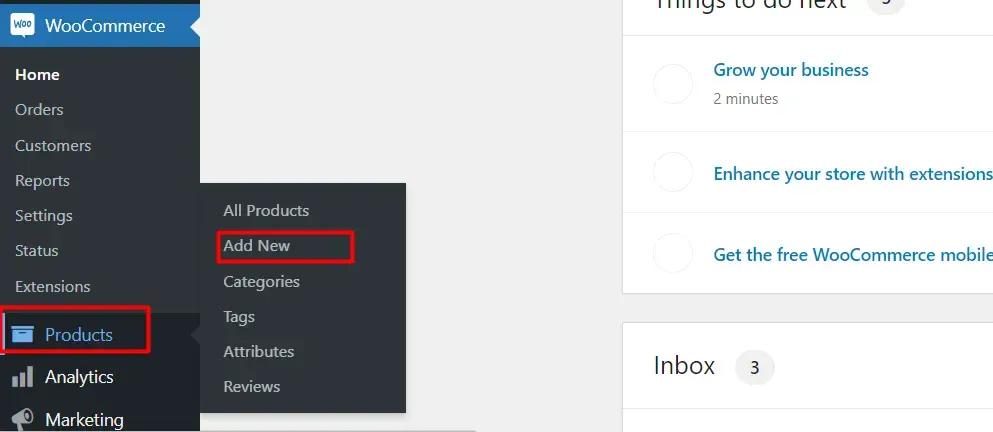
Log in to your WordPress dashboard. Navigate to Products and click Add New to create a new product.
📝 Note: Make sure MemberHub Pro is installed and activated before proceeding. Without it, the Subscription product type will not appear in the product type dropdown.
Set Basic Product Information
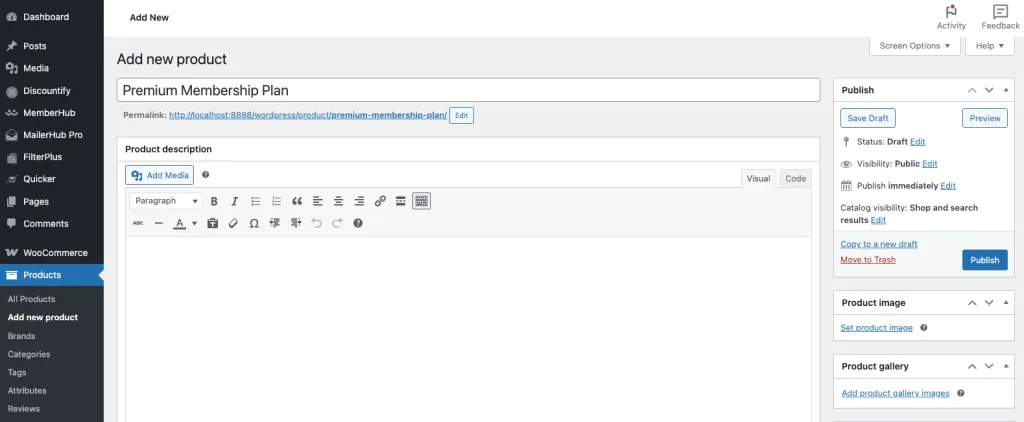
On the new product page, fill in the following details:
- Product Name — enter the title of your subscription product (e.g., Premium Membership Plan).
- Product Type — select Subscription from the product type dropdown.
- Product Description — add the main description shown on the product page.
- Short Description — add a brief summary displayed near the price.
- Product Image — upload the main product image.
- Product Category — assign the product to one or more categories.
Configure the WooCommerce Subscription Product
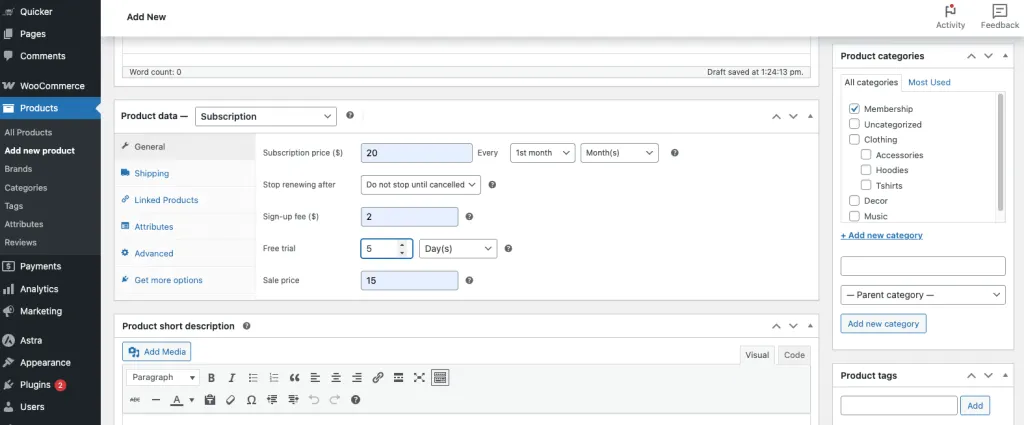
Scroll down to the Product Data section. From the product type dropdown, select Subscription. You will see the subscription configuration fields. Fill them in as follows:
- Subscription Price — set the recurring charge per billing cycle (e.g., $29.99).
- Every [Day / Month / Year] — select how often the subscription renews. Choose Month for monthly billing.
- Stop Renewing After — define the number of billing cycles before the subscription ends automatically (e.g., 12 months).
- Sign-up Fee — add a one-time charge collected when the customer first subscribes (e.g., $10.00).
- Free Trial — allow customers to try the subscription for a set period before billing starts (e.g., 7 days).
- Sale Price — offer the subscription at a discounted rate for a limited period (e.g., $24.99 for the first 3 months).
📝 Note: These fields give you full control over billing frequency, trial periods, and promotional pricing — without writing any code.
Publish and Preview the Subscription Product
Once you have entered all subscription details, you have two options:
- Publish — click Publish to make the product live in your store immediately.
- Preview — click Preview at the top right to see how the subscription product will appear to customers before going live.
The preview shows the subscription price, billing cycle, free trial period, and any promotional pricing exactly as customers will see it on the product page.
How Customers Purchase the Subscription
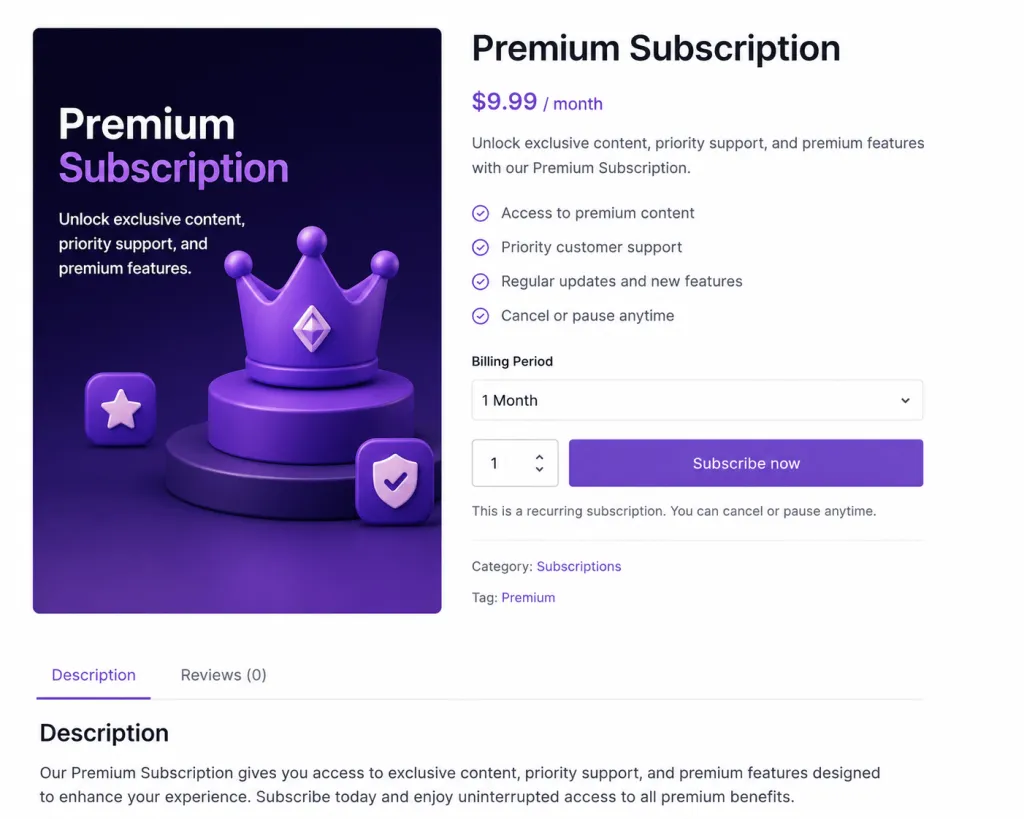
When a customer selects the subscription product and proceeds to checkout, they are charged based on the pricing you configured. The cart page shows:
- The subscription price and billing cycle
- The next payment date
- Any applicable free trial period
- One-time sign-up fees
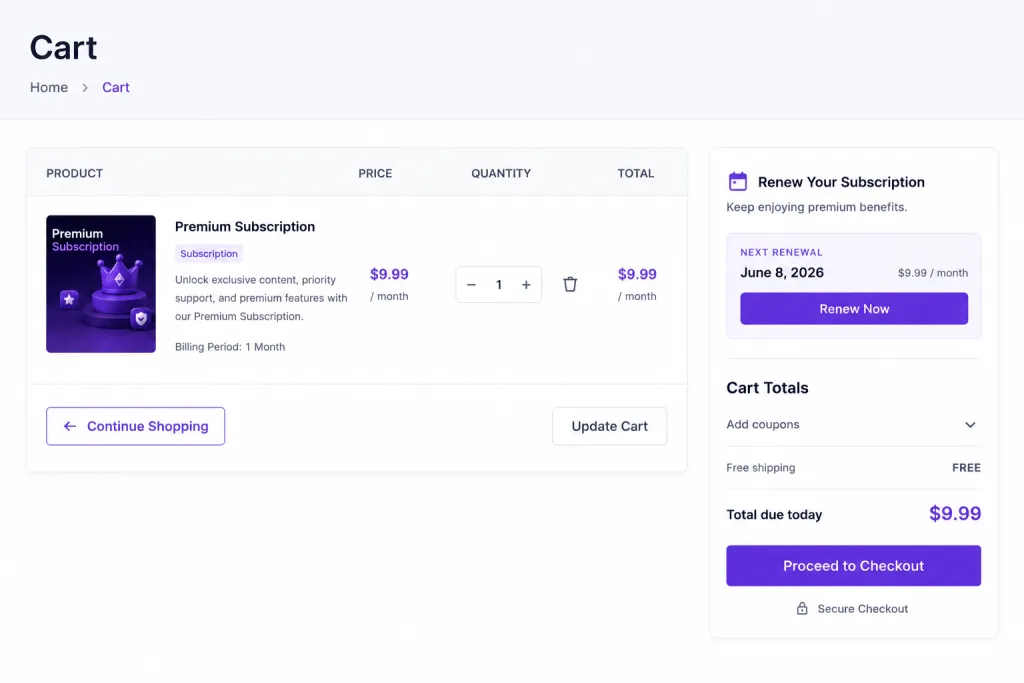
📝 Note: The cart page displays all subscription details transparently so customers know exactly what they are agreeing to before completing their purchase.
Viewing and Managing Subscription Orders
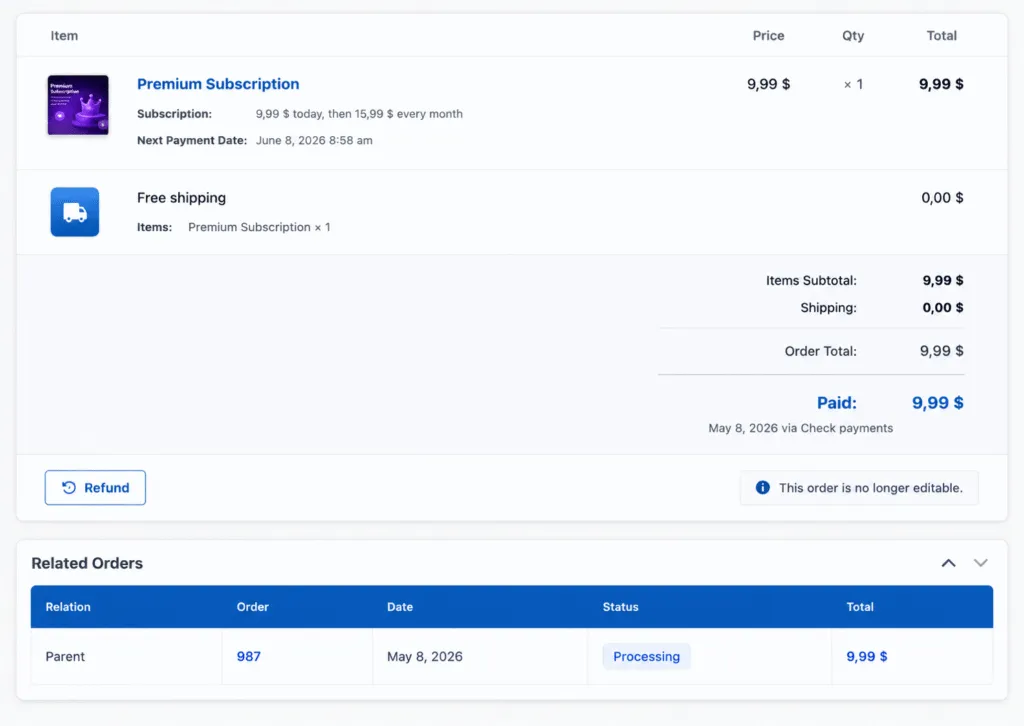
After a customer purchases a subscription product, view and manage the order from WooCommerce > Orders in your WordPress dashboard:
- Go to WooCommerce > Orders.
- Locate and select the order you want to review.
- The order detail page shows the subscription product, pricing, billing schedule, and renewal information.
User Dashboard — Membership and Subscription Details
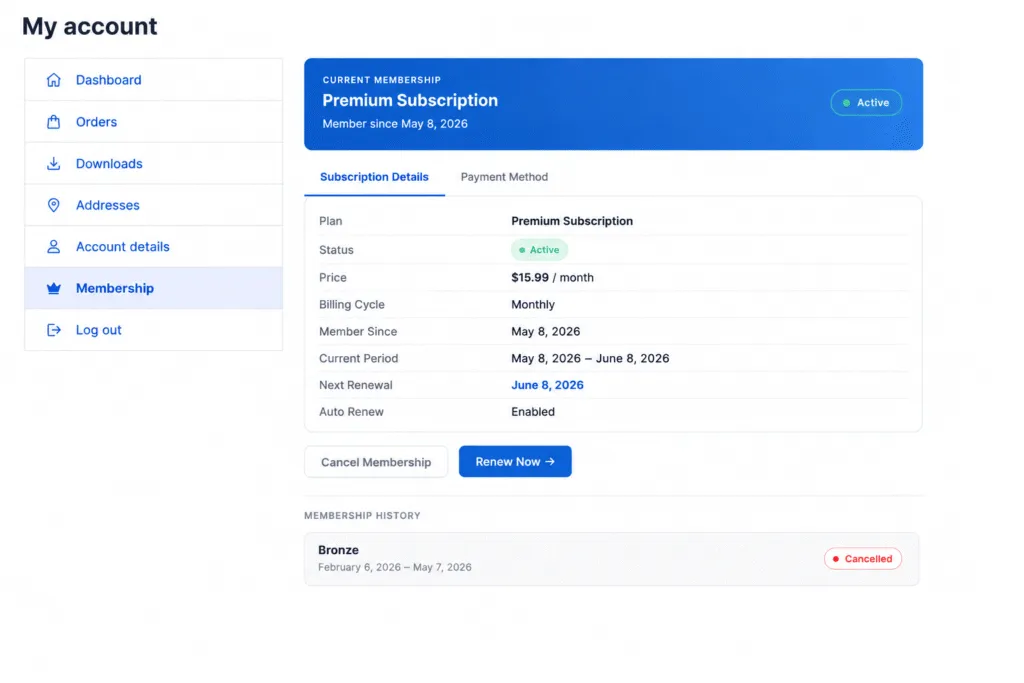
Customers manage their own subscriptions directly from the My Account dashboard. From there, they can:
- View active membership and subscription details
- Check billing information and upcoming renewal dates
- Review full membership history
- Cancel or pause a subscription (if enabled)
Step 4 — Choose a Subscription Pricing Strategy
Pricing is where most subscription businesses leave money on the table. The goal is to capture maximum value from high-intent buyers while staying accessible to price-sensitive customers.
| Strategy | Structure | Best When |
|---|---|---|
| Tiered pricing | 3 plans (Basic / Pro / Premium) at escalating prices | You have a clear feature ladder across plans |
| Annual discount | Monthly vs. 12-month price (15–25% discount) | You want to reduce churn and improve upfront cash flow |
| Freemium + upgrade | Free tier with limited access, paid tier for full access | You have a large addressable audience |
| Usage-based / per seat | Price scales with number of users or usage units | B2B or team-based subscriptions |
For a first WooCommerce subscription product, the most reliable model is a three-tier structure: a free or trial plan, a core paid plan at $9 to $19 per month, and a premium plan at $29 to $49 per month. The middle tier captures the majority of paying subscribers in most markets.
Step 5 — Reduce Churn and Protect Recurring Revenue
Churn is the percentage of subscribers who cancel each month. A 5% monthly churn rate means you lose more than 45% of your subscriber base in a year. Keeping churn below 2% is the difference between compounding growth and running on a treadmill.
- Onboarding email sequence — send 3 to 5 emails in the first 14 days that help new subscribers get value immediately.
- Monthly value reminder — one email per month that shows subscribers what they accessed and what they would lose by cancelling.
- Pause instead of cancel — give subscribers an option to pause their plan for 1 to 3 months. MemberHub supports plan pausing from the subscriber dashboard.
- Annual billing incentive — offer a 2-month discount to monthly subscribers who switch to an annual plan.
- Exit survey on cancellation — ask cancelling subscribers why they are leaving.
WooCommerce Subscription Revenue Benchmarks
| Metric | Typical Range | Good Target |
|---|---|---|
| Monthly churn rate | 3% to 8% | Below 2% |
| Free trial conversion rate | 15% to 30% | Above 25% |
| Annual plan uptake | 20% to 35% of subscribers | Above 30% |
| Average subscription lifetime | 8 to 14 months | 18+ months |
| MRR from 100 subscribers at $19/month | $1,900/month | Grow to 500+ subscribers |
Frequently Asked Questions
Does WooCommerce support subscription products natively?
WooCommerce does not include subscription functionality by default. You need a plugin such as MemberHub, WooCommerce Subscriptions, or Paid Memberships Pro to handle recurring billing, subscriber management, and access control.
What is the easiest WooCommerce subscription plugin for beginners?
MemberHub is a strong starting point because it has a free version, integrates directly with WooCommerce checkout, and covers both membership access control and subscription billing without requiring a separate paid extension.
How do I create a WooCommerce subscription product with MemberHub?
Go to Products > Add New in your WordPress dashboard. Select Subscription as the product type. In the Product Data panel, set the billing cycle, price, trial period, and sign-up fee in the MemberHub subscription fields. Publish the product and test the checkout flow. MemberHub automatically activates the subscription when a customer completes a purchase.
How do I reduce subscription churn in WooCommerce?
The highest-impact tactics are a strong onboarding email sequence in the first 14 days, offering an annual billing option with a discount, adding a pause option before cancellation, and sending monthly value reminder emails. Target a churn rate below 2%.
What is a good price for a WooCommerce subscription product?
For content memberships, $9 to $19 per month is the most common entry-level price point. A three-tier structure (free, core, premium) converts best, with the middle tier capturing the majority of paying subscribers.
What payment gateways work with MemberHub subscription products?
MemberHub subscription billing works with Stripe and PayPal, both of which support tokenized recurring charges. Standard gateways such as bank transfer do not support automatic recurring billing and are not compatible with subscription products.
Can I offer a free trial on a WooCommerce subscription product?
Yes. MemberHub lets you set a free trial period — such as 7 or 14 days — on any subscription product. During the trial, no payment is collected. Billing starts automatically when the trial ends, unless the customer cancels first.
Final Thoughts
Creating a WooCommerce subscription product does not require a complex setup. The core steps are: choose a plugin that handles recurring billing, define your billing cycle and pricing tiers, configure a free trial if your audience needs one, and put churn reduction tactics in place before you reach 100 subscribers.
MemberHub is the lowest-barrier entry point for WooCommerce store owners who want membership access control and subscription billing without the premium cost of the official WooCommerce Subscriptions extension. Install the free version, create your first subscription product, and test the checkout flow in under a day.
The most common mistake is waiting to launch until the product feels perfect. A $9 per month plan with 50 subscribers teaches you more about pricing, churn, and product fit than any planning exercise.

Written by
Zannatun Nime
May 10, 2026
Zannatun Nime writes about AI, developer tools, and social media marketing in a simple and easy-to-follow way. He enjoys making complex topics clear, practical, and useful for everyday readers.
Related reading

RESOURCES
Best Booking Plugins for WordPress in 2026 – Top Picks for Service Businesses
Discover the best booking plugins for WordPress in 2026. Honest pros, cons & pricing for every top tool. GemBooking leads the list for service businesses.

RESOURCES
Best WordPress Automation Plugins for 2026 (Complete Guide)
You didn't build a WordPress site to spend your days copying form entries into spreadsheets, manually emailing customers after every purchase, or chasing down the same tasks every single week. That gap between what WordPress can do and what it does automatically? That's where most site owners bleed time.

RESOURCES
Best Custom Post Type Plugins for WordPress in 2026 (Free & Pro)
You built your WordPress site. Posts and pages are live. Then your client asks: Can we add a Testimonials section? A Jobs board? A Portfolio gallery? This is where custom post type plugins save you.